Calculating age in Excel is very useful when you have many dates of birth in a sheet. Instead of calculating each person’s age manually, you can use Excel formulas to calculate age automatically.
Excel can calculate age in years, months, days, or even in a full format like years, months, and days. This is helpful for school records, employee data, exam eligibility, job applications, customer lists, and personal records.
What do you need to calculate age in Excel?
To calculate age in Excel, you mainly need the person’s date of birth. You also need a target date if you want to calculate age on a specific date.
For example, if the date of birth is in cell A2, Excel can compare that date with today’s date. If you want age on a cut-off date, you can place the cut-off date in another cell and use it in the formula.
Calculate age in completed years
The easiest way to calculate age in completed years is by using the DATEDIF formula. This formula calculates the difference between two dates.
If the date of birth is in cell A2, use this formula:
=DATEDIF(A2,TODAY(),"Y")This formula shows the completed age in years. For example, if someone is 25 years and 8 months old, the result will show 25, because the person has completed 25 full years.
How this formula works
In this formula, A2 is the date of birth. TODAY() automatically takes today’s date from Excel.
The letter “Y” tells Excel to return the difference in completed years. This means Excel checks whether the birthday has already passed this year before showing the age.
Calculate age on a specific date
Sometimes you may not want to calculate age as of today. You may want to calculate age on a cut-off date for school admission, exams, or jobs.
If the date of birth is in A2 and the cut-off date is in B2, use this formula:
=DATEDIF(A2,B2,"Y")This formula calculates the completed age on the date written in cell B2. This is useful when an official form says age should be calculated as on a fixed date.
Calculate exact age in years, months, and days
If you want exact age in years, months, and days, you can combine multiple DATEDIF formulas.
Use this formula:
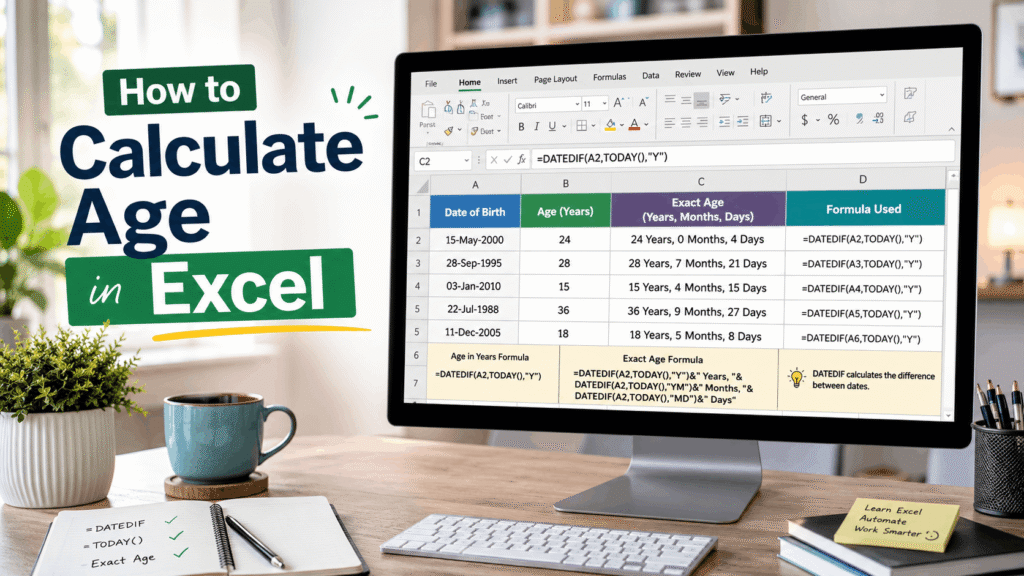
=DATEDIF(A2,TODAY(),"Y")&" Years, "&DATEDIF(A2,TODAY(),"YM")&" Months, "&DATEDIF(A2,TODAY(),"MD")&" Days"This formula gives a result like:
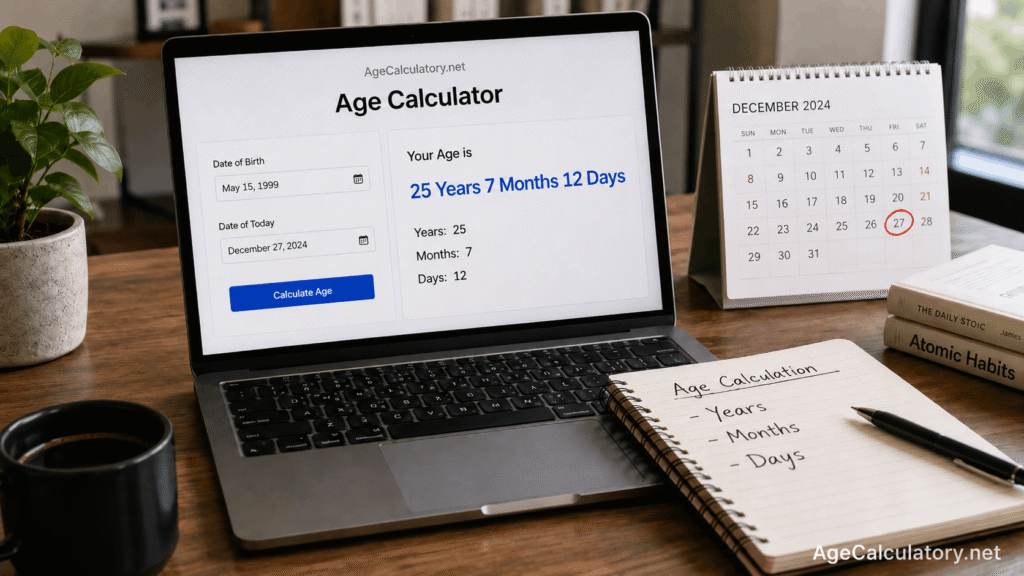
25 Years, 7 Months, 12 DaysThis is more useful than only showing completed years because it gives a clear and detailed age result.
What does YM mean in Excel?
In the DATEDIF formula, “YM” means completed months after completed years are removed. It does not count total months from birth.
For example, if someone is 25 years and 7 months old, “YM” returns 7. It gives only the extra months after the completed years.
What does MD mean in Excel?
In the DATEDIF formula, “MD” means remaining days after completed years and months are removed. It shows the extra days part of the exact age.
For example, if someone is 25 years, 7 months, and 12 days old, “MD” returns 12. This helps create a full age result in years, months, and days.
Calculate age in total months
Sometimes you may need age in total months, especially for babies and children. This is useful for school records, child growth records, and baby milestone tracking.
Use this formula:
=DATEDIF(A2,TODAY(),"M")This formula shows the total completed months from the date of birth to today. For example, a child who is 2 years and 6 months old may show as 30 months.
Calculate age in total days
If you want to know how many days old someone is, Excel can calculate that too. This is useful for birthday milestones, baby age, and total days lived.
Use this formula:
=TODAY()-A2This formula subtracts the date of birth from today’s date. The result shows the total number of days between the two dates.
Calculate age in total weeks
Excel does not directly show age in weeks, but you can calculate it from total days. Since one week has 7 days, divide the total days by 7.
Use this formula:
=INT((TODAY()-A2)/7)This formula shows the completed weeks from the date of birth to today. The INT function removes decimal values and gives only completed weeks.
Calculate age using YEARFRAC
Another way to calculate age in Excel is by using the YEARFRAC formula. This formula gives age in decimal years.
Use this formula:
=INT(YEARFRAC(A2,TODAY()))This can also show completed years. However, for age calculation, DATEDIF is usually easier to understand because it can separately calculate years, months, and days.
Calculate age for multiple people
If you have many dates of birth in Excel, enter the formula in the first row and drag it down. Excel will automatically apply the formula to the remaining rows.
For example, if dates of birth are in column A, you can enter the age formula in column B. Then drag the formula down to calculate ages for all people in the list.
Example table
Here is a simple example of how your Excel sheet can look:
| Date of Birth | Formula | Result |
|---|---|---|
| 15 May 2000 | =DATEDIF(A2,TODAY(),"Y") | Completed age in years |
| 15 May 2000 | =DATEDIF(A2,TODAY(),"M") | Total completed months |
| 15 May 2000 | =TODAY()-A2 | Total days lived |
| 15 May 2000 | Exact age formula | Years, months, and days |
This type of table is useful when you are preparing records for students, employees, applicants, or family members.
Age calculation for eligibility in Excel
Excel is also useful for eligibility age calculation. For example, if a job notification says age should be calculated as on 1 August 2026, you can use that date as the cut-off date.
If date of birth is in A2 and cut-off date is in B2, use:
=DATEDIF(A2,B2,"Y")This will show the completed age on the cut-off date. You can then compare it with the minimum and maximum age limit.
Common mistakes while calculating age in Excel
One common mistake is using only the birth year. For example, subtracting birth year from current year can be wrong if the birthday has not arrived yet.
Another mistake is entering dates in the wrong format. Excel may read 05/10/2000 as 5 October or 10 May depending on your regional settings, so always check your date format carefully.
Date format problem in Excel
Date format issues are common in Excel. If Excel treats your date as text, formulas may not work correctly.
To avoid this problem, make sure the date of birth cells are formatted as dates. You can select the cells, open Format Cells, and choose a clear date format like dd-mmm-yyyy.
Best Excel formula for exact age
For most users, the best exact age formula is:
=DATEDIF(A2,TODAY(),"Y")&" Years, "&DATEDIF(A2,TODAY(),"YM")&" Months, "&DATEDIF(A2,TODAY(),"MD")&" Days"This formula is simple, clear, and useful for everyday age calculation. It gives a human-readable result that looks similar to online age calculator results.
Use AgeCalculatory.net instead of manual formulas
Excel is useful when you have many records in a sheet. But if you want to quickly calculate one person’s age, an online age calculator may be easier.
You can use AgeCalculatory.net to calculate exact age from date of birth. It can help you find age in years, months, and days without writing formulas manually.
When Excel is better
Excel is better when you have many people’s dates of birth. For example, schools, offices, coaching centers, HR teams, and data entry users may calculate hundreds of ages at once.
In those cases, Excel formulas save time. You can calculate age for an entire column with one formula and drag it down.
When an online age calculator is better
An online age calculator is better when you want a quick result without opening Excel. It is also useful when you do not remember the formula.
For example, if you want to check age for a form, exam, job, or school admission, you can quickly use AgeCalculatory.net and enter the date of birth and target date.
Frequently Asked Questions
What is the formula to calculate age in Excel?
The simplest formula is =DATEDIF(A2,TODAY(),"Y"). It calculates completed age in years from the date of birth in cell A2.
How do I calculate exact age in Excel?
Use DATEDIF with years, months, and days. The formula can combine "Y", "YM", and "MD" to show exact age.
Can Excel calculate age from date of birth?
Yes, Excel can calculate age from date of birth using formulas like DATEDIF, TODAY, and YEARFRAC.
How do I calculate age on a cut-off date in Excel?
Enter the cut-off date in another cell, such as B2. Then use =DATEDIF(A2,B2,"Y") to calculate age on that date.
Why is my Excel age formula not working?
The date may be stored as text, or the date format may be wrong. Format the date cells properly and make sure Excel recognizes them as real dates.
Can I calculate age in months in Excel?
Yes. Use =DATEDIF(A2,TODAY(),"M") to calculate total completed months from date of birth to today.
Can I calculate age in days in Excel?
Yes. Use =TODAY()-A2 to calculate total days from date of birth to today.
Conclusion
Calculating age in Excel is easy when you use the correct formula. For completed years, the DATEDIF formula is simple and useful. For exact age, you can combine years, months, and days in one formula.
Excel is especially helpful when you need to calculate age for many people at once. It is useful for school records, employee data, exam lists, job applications, and personal databases.
For quick single-person age calculation, you can also use AgeCalculatory.net. It gives exact age results without needing to remember Excel formulas.