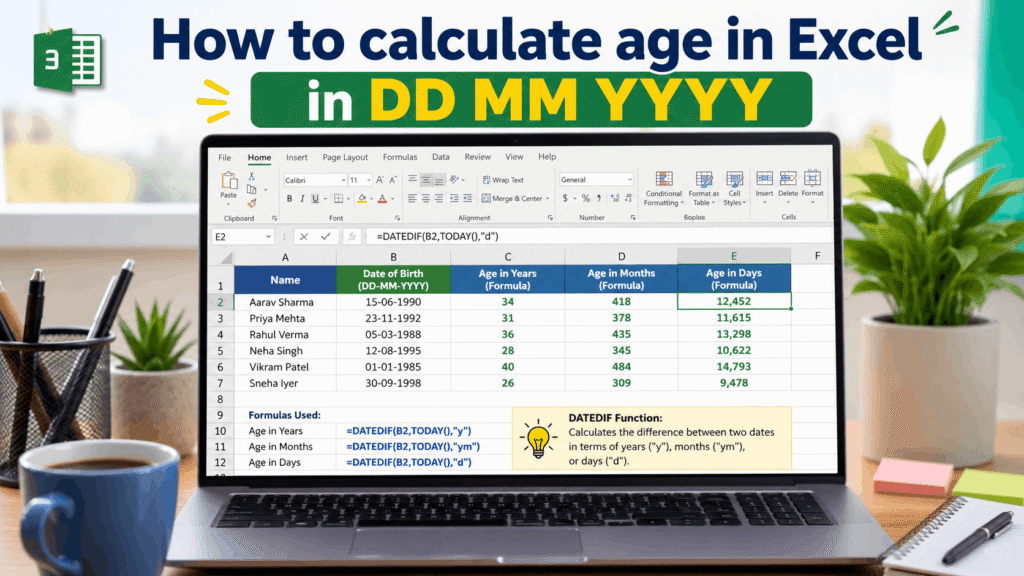
Calculating age in Excel in DD MM YYYY format is useful when your date of birth is written like 15-05-2000 or 15/05/2000. This format is common in India, the UK, and many other countries where the day comes first, then the month, and then the year.
Excel can calculate age from this format, but the date must be recognized as a real Excel date. If Excel treats the date as text, the age formula may not work correctly. So the first step is to make sure your date of birth is entered and formatted properly.
What does DD MM YYYY mean?
DD MM YYYY means Day, Month, Year. In this format, the first part is the day, the second part is the month, and the third part is the year.
For example:
15-05-2000This means:
15 May 2000It does not mean 5 October 2015 or any other date. The order is day first, month second, and year last.
Why DD MM YYYY format matters in Excel
Date format matters because Excel may read dates differently based on your computer or Excel regional settings. In some regions, 05/10/2000 may be understood as 5 October 2000. In other regions, it may be understood as May 10, 2000.
This can create wrong age results. That is why using a clear format like dd-mmm-yyyy is often safer. For example, 15-May-2000 is much clearer than 15/05/2000.
Best date format to use in Excel
If you are working with age calculation, the best date format is usually:
dd-mmm-yyyyExample:
15-May-2000This format is easy to understand because the month name is shown clearly. It reduces confusion between day and month.
How to format date of birth as DD MM YYYY in Excel
First, select the cells where you entered the dates of birth. Then right-click and choose Format Cells. After that, select Date or Custom.
In the custom format box, you can enter:
dd-mm-yyyyThis will display the date as day-month-year. For example, 15 May 2000 will appear as 15-05-2000.
Basic Excel age formula for DD MM YYYY date
If your date of birth is in cell A2, you can calculate completed age in years using this formula:
=DATEDIF(A2,TODAY(),"Y")This formula works even if the date is displayed as DD MM YYYY, as long as Excel recognizes the value as a real date. The formula calculates completed years from the date of birth to today.
How this formula works
In the formula, A2 is the cell that contains the date of birth. TODAY() automatically takes today’s date from Excel.
The “Y” part tells Excel to calculate only completed years. If a person is 24 years and 8 months old, the formula will show 24, not 25.
Example of age calculation in Excel
Suppose cell A2 has this date:
15-05-2000Now enter this formula in cell B2:
=DATEDIF(A2,TODAY(),"Y")Excel will calculate the completed age based on today’s date. If the person has completed 24 years, the result will show 24.
Calculate exact age in years, months, and days
If you want exact age in years, months, and days, use this formula:
=DATEDIF(A2,TODAY(),"Y")&" Years, "&DATEDIF(A2,TODAY(),"YM")&" Months, "&DATEDIF(A2,TODAY(),"MD")&" Days"This formula gives a result like:
24 Years, 8 Months, 12 DaysThis is more useful when you want a detailed age result, not only completed years.
What does Y mean in DATEDIF?
In Excel, “Y” means completed years between two dates. It checks whether the birthday has passed in the current year before showing the age.
This is important because simple year subtraction can be wrong. If the birthday has not arrived yet this year, the completed age is one year less than the simple year difference.
What does YM mean in DATEDIF?
The “YM” part gives the extra completed months after completed years are removed. It does not show total months from birth.
For example, if a person is 24 years and 8 months old, “YM” returns 8. This helps build an exact age format.
What does MD mean in DATEDIF?
The “MD” part gives the remaining days after completed years and completed months are removed. It is used to show the final days part of exact age.
For example, if a person is 24 years, 8 months, and 12 days old, “MD” returns 12.
Calculate age on a cut-off date in DD MM YYYY format
Sometimes you need to calculate age on a specific cut-off date. This is common for school admission, exam eligibility, job applications, and government forms.
If date of birth is in A2 and cut-off date is in B2, use this formula:
=DATEDIF(A2,B2,"Y")This formula calculates completed age on the cut-off date written in cell B2.
Exact age on a cut-off date
If you want exact age on a cut-off date in years, months, and days, use this formula:
=DATEDIF(A2,B2,"Y")&" Years, "&DATEDIF(A2,B2,"YM")&" Months, "&DATEDIF(A2,B2,"MD")&" Days"This is useful when a notification says something like age as on 01-08-2026. You can enter that cut-off date in B2 and calculate the exact age clearly.
Example for exam eligibility
Suppose your date of birth is:
15-05-2000And the exam cut-off date is:
01-08-2026If date of birth is in A2 and cut-off date is in B2, use:
=DATEDIF(A2,B2,"Y")This will show your completed age on 01-08-2026.
Calculate age in total months
If you want age in total completed months, use this formula:
=DATEDIF(A2,TODAY(),"M")This is useful for babies, children, school records, and child age calculations. It gives the total number of completed months from date of birth to today.
Calculate age in total days
If you want age in total days, use this formula:
=TODAY()-A2This formula subtracts the date of birth from today’s date. It gives the total number of days between both dates.
Calculate age in total weeks
To calculate age in total weeks, first calculate total days and divide by 7. Use this formula:
=INT((TODAY()-A2)/7)The INT function removes decimal values and shows only completed weeks. This is useful when you want age in weeks.
If Excel does not recognize DD MM YYYY date
Sometimes Excel may treat 15-05-2000 as text instead of a date. If that happens, formulas like DATEDIF may show errors.
To check this, click the cell and look at the alignment. Real dates often align to the right by default, while text values may align to the left. You can also try changing the cell format to Date.
How to fix date stored as text
If your date is stored as text in DD MM YYYY format, you can convert it into a real date. Suppose A2 contains text like:
15-05-2000You can use this formula:
=DATE(RIGHT(A2,4),MID(A2,4,2),LEFT(A2,2))This formula extracts the year, month, and day from the text and creates a real Excel date.
Explanation of the conversion formula
In this formula, RIGHT(A2,4) takes the last 4 digits as the year. MID(A2,4,2) takes the middle 2 digits as the month.
LEFT(A2,2) takes the first 2 digits as the day. Then the DATE function combines them into a proper Excel date.
Calculate age after converting text date
If the text date is in A2, you can convert it and calculate age in one formula:
=DATEDIF(DATE(RIGHT(A2,4),MID(A2,4,2),LEFT(A2,2)),TODAY(),"Y")This formula is useful when your date of birth is stored as text in DD-MM-YYYY format and you want completed age in years.
Exact age from text date in DD MM YYYY
If your date is text in DD-MM-YYYY format, and you want exact age, use this formula:
=DATEDIF(DATE(RIGHT(A2,4),MID(A2,4,2),LEFT(A2,2)),TODAY(),"Y")&" Years, "&DATEDIF(DATE(RIGHT(A2,4),MID(A2,4,2),LEFT(A2,2)),TODAY(),"YM")&" Months, "&DATEDIF(DATE(RIGHT(A2,4),MID(A2,4,2),LEFT(A2,2)),TODAY(),"MD")&" Days"This formula is longer, but it helps when Excel is not reading your date as a real date.
Better method for large Excel sheets
If you have many dates stored as text, it is better to convert them into real dates in a helper column first. Then use simple DATEDIF formulas on the converted dates.
For example, if text date is in A2, convert it in B2:
=DATE(RIGHT(A2,4),MID(A2,4,2),LEFT(A2,2))Then calculate age in C2:
=DATEDIF(B2,TODAY(),"Y")This keeps your sheet cleaner and easier to understand.
Example table for DD MM YYYY age calculation
| Date of Birth | Converted Date | Formula | Result |
|---|---|---|---|
| 15-05-2000 | 15-May-2000 | =DATEDIF(B2,TODAY(),"Y") | Completed age |
| 28-09-1995 | 28-Sep-1995 | =DATEDIF(B3,TODAY(),"Y") | Completed age |
| 03-01-2010 | 03-Jan-2010 | =DATEDIF(B4,TODAY(),"Y") | Completed age |
| 22-07-1988 | 22-Jul-1988 | =DATEDIF(B5,TODAY(),"Y") | Completed age |
This structure is helpful when you are working with student data, employee records, exam lists, or application data.
Common Excel errors
One common error is #VALUE!. This often happens when Excel does not recognize the date as a valid date.
Another common problem is wrong age result because Excel reads the date in MM DD YYYY format instead of DD MM YYYY. Always check the date format before trusting the result.
Best formula for normal DD MM YYYY date
If Excel already recognizes your date correctly, use this formula for completed age:
=DATEDIF(A2,TODAY(),"Y")For exact age, use:
=DATEDIF(A2,TODAY(),"Y")&" Years, "&DATEDIF(A2,TODAY(),"YM")&" Months, "&DATEDIF(A2,TODAY(),"MD")&" Days"These are the best formulas for most users.
Best formula for text DD-MM-YYYY date
If your date is stored as text like 15-05-2000, use this formula for completed years:
=DATEDIF(DATE(RIGHT(A2,4),MID(A2,4,2),LEFT(A2,2)),TODAY(),"Y")This formula first converts the text into a real date and then calculates age.
Use AgeCalculatory.net for quick checking
Excel is useful when you have many records. But if you want to calculate one person’s age quickly, an online age calculator may be easier.
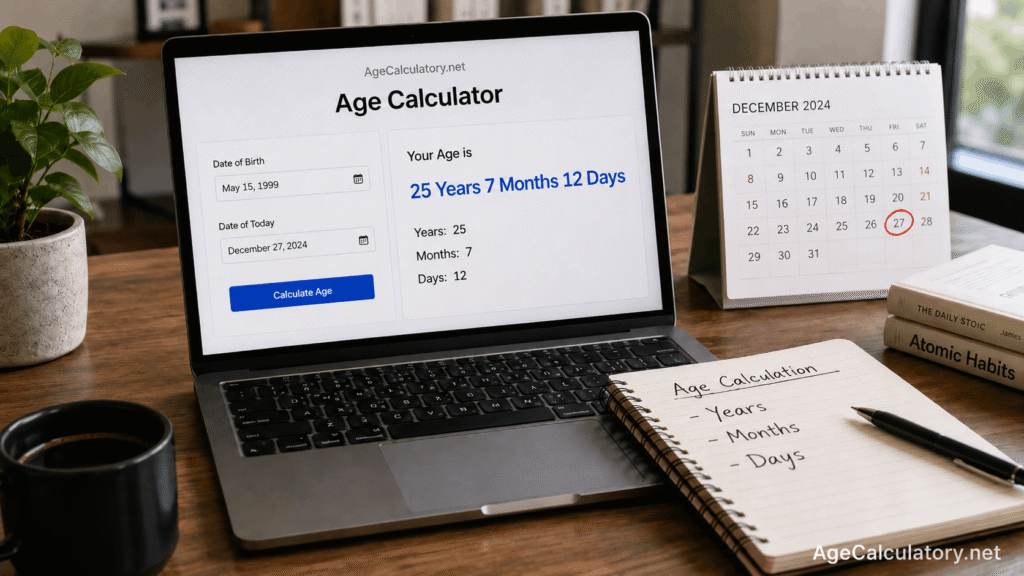
You can use AgeCalculatory.net to calculate exact age from date of birth. It can show age in years, months, and days without writing any formula.
Frequently Asked Questions
How do I calculate age in Excel in DD MM YYYY format?
If Excel recognizes the date as a real date, use =DATEDIF(A2,TODAY(),"Y"). Make sure the date cell is formatted as DD MM YYYY.
What is the exact age formula in Excel?
Use =DATEDIF(A2,TODAY(),"Y")&" Years, "&DATEDIF(A2,TODAY(),"YM")&" Months, "&DATEDIF(A2,TODAY(),"MD")&" Days".
Why is my Excel age formula showing an error?
The date may be stored as text, or Excel may not recognize the DD MM YYYY format. Convert the text date into a real date first.
How do I convert DD-MM-YYYY text to date in Excel?
Use =DATE(RIGHT(A2,4),MID(A2,4,2),LEFT(A2,2)) if the text date is in A2.
Can I calculate age on a cut-off date?
Yes. If date of birth is in A2 and cut-off date is in B2, use =DATEDIF(A2,B2,"Y").
Can I calculate age in days in Excel?
Yes. Use =TODAY()-A2 if A2 contains a valid date of birth.
Can I calculate age in months in Excel?
Yes. Use =DATEDIF(A2,TODAY(),"M") to calculate total completed months.
Conclusion
Calculating age in Excel in DD MM YYYY format is easy when Excel recognizes your date as a real date. The simplest formula for completed age is =DATEDIF(A2,TODAY(),"Y").
If you want exact age, you can use DATEDIF with years, months, and days. If Excel stores your DD-MM-YYYY date as text, convert it first using the DATE, RIGHT, MID, and LEFT functions.
For large sheets, Excel is very useful because you can calculate age for many people at once. For quick single-person age calculation, use AgeCalculatory.net to get exact age without writing formulas.